.png)
You spot the mistake a second after clicking send. Wrong attachment, wrong recipient, a figure that should never have left the building. The good news is that Outlook can sometimes pull the message back, and learning how to call back an email on Outlook takes about a minute. The catch is that recall only works under specific conditions, and outside those conditions it quietly fails.
Message recall works when both you and the recipient use Microsoft 365 work or school accounts inside the same organisation, and the recipient has not opened the email yet. It does not work for personal accounts like Gmail or Outlook.com, and it cannot reach anyone outside your organisation. When recall is not an option, Undo Send and a fast correction email are your fallbacks.
Below you'll find the exact steps to recall an email in Outlook, an honest breakdown of when recall succeeds and when it doesn't, and the settings that stop this happening again.
How to Call Back an Email on Outlook
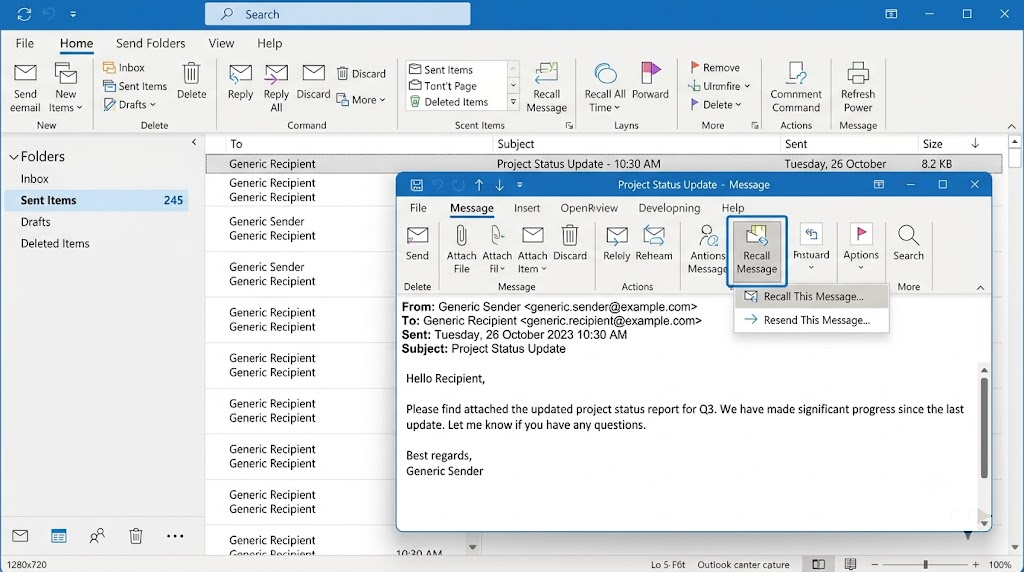
To call back an email on Outlook, open your Sent Items folder, double-click the message to open it in its own window, then choose Recall Message from the ribbon. The recall option never appears when a message is only previewed in the reading pane, so the message has to be open in a separate window first.
Classic Outlook for Windows
- Open the Sent Items folder.
- Double-click the email so it opens in a separate window.
- On the Message tab, select Actions, then Recall This Message. On the simplified ribbon, use the More commands (…) menu, or go to File then Info then Resend or Recall.
- Choose Delete unread copies, or Delete unread copies and replace with a new message.
- Tick Tell me if recall succeeds or fails for each recipient, then select OK.
New Outlook and Outlook on the Web
- Open Sent Items and double-click the sent message to open it in its own window.
- Select Recall Message on the ribbon. On the web, use the three-dot More actions menu, then Advanced actions, then Recall message.
- Confirm with OK. A Message Recall Report lands in your inbox shortly after.
Outlook for Mac on recent versions and the Outlook mobile app now offer recall in some environments too, though availability varies by setup. If you don't see the option, your account or app version does not support it yet.
When Email Recall Actually Works in Outlook
Message recall only works when both the sender and recipient use Microsoft 365 or Exchange work accounts within the same organisation. The success depends on your organisation's settings and a reliable Microsoft 365 suite solution.
It cannot pull a message back from an external address, a personal account, or an inbox where the email has already been read under the older client-based recall.
Recall vs Undo Send Explained
Recall and Undo Send solve the same panic in different ways.
Undo Send holds your message in the outbox for a few seconds after you click send, so you can cancel before it leaves. Recall tries to remove a message that has already been delivered. Undo Send is far more reliable, but the window is tiny.
How to Check If a Recall Worked in Outlook
After you send a recall request, Outlook emails you a Message Recall Report, usually within a few minutes. Open it and select the link to see the status for each recipient, marked as succeeded, pending, or failed. A successful report means the original was removed. A failed one means the recipient still has it.
For a message going to a few hundred recipients, status updates can take up to five minutes, and very large lists take longer. Recall is not always silent either.
Depending on your organisation's settings, the recipient may see a notice that a message was recalled. Never assume the email vanished until the report confirms it.
What to Do When You Cannot Recall an Email in Outlook
When recall is off the table, send a short correction email straight away. Acknowledge the error in one line, ask the recipient to delete the original, and attach the correct version if you're replacing content. For an external recipient this is usually the only option, because Outlook cannot reach mailboxes outside your organisation.
There's a bigger issue if the email carried personal data. If client records, payroll details, or anything sensitive went to the wrong person, it may count as a personal data breach under GDPR.
Sending an email to the wrong recipient is consistently one of the most common causes of breaches reported to the Data Protection Commission's breach notification guidance, which sets out what to do next. Under GDPR, an organisation must notify the DPC within 72 hours where a breach poses a risk to the people affected, so assess that clock rather than waiting to see if a recall succeeds.
3 Ways to Prevent Email Send Regret Before It Happens
The most reliable fix is not recall at all. It's a short send delay that gives you a few seconds to catch mistakes before they leave. Turn on Undo Send in the newer Outlook apps, add a delay rule in classic Outlook, and use Schedule Send for anything high-stakes.
1. Turn On Undo Send
In new Outlook or on the web, go to Settings, then Mail, then Compose and reply, and scroll to the Undo send section. Drag the slider to the maximum your version allows. Even a short delay catches most wrong-recipient and missing-attachment slips.
2. Add a Delay Rule in Classic Outlook
Classic Outlook has no Undo Send button, so build your own.
- Go to File, then Manage Rules & Alerts, then New Rule, choose Apply rule on messages I send, leave the conditions blank, and add the action defer delivery by a number of minutes. Every outgoing message now waits in the outbox, giving you a window to drag it back to Drafts.
3. Double-Check the To Field
Outlook's autocomplete is aggressive, and typing "Dan" can autofill the wrong Dan in a heartbeat. Confirm your recipients before sending, especially for external or sensitive emails, and use Schedule Send so anything important goes out when you've had a second look.
If your team lives in Microsoft 365, it's worth having these settings configured correctly across every mailbox, backed by email security and backups that catch what a delay cannot. Book a free IT audit to get your Microsoft 365 setup reviewed and tightened.
Get an IT Plan Today!


.png)