Laptop overheating usually shows up as a hot base, a fan that never settles, sudden slowdowns and shutdowns with no warning. In most cases the cause is blocked airflow, dust in the fan or too much running in the background. Most of it can be fixed without replacing the laptop.
The trouble is that heat problems creep up slowly. A laptop that runs a little warm in autumn can be cutting out mid-call by spring, and by then the battery or fan may already be worn.
This guide sorts the warning signs by how urgent they are and explains what's driving the heat. It also separates the fixes your team can do safely from the ones that need a technician.
What Are the Warning Signs of Laptop Overheating?
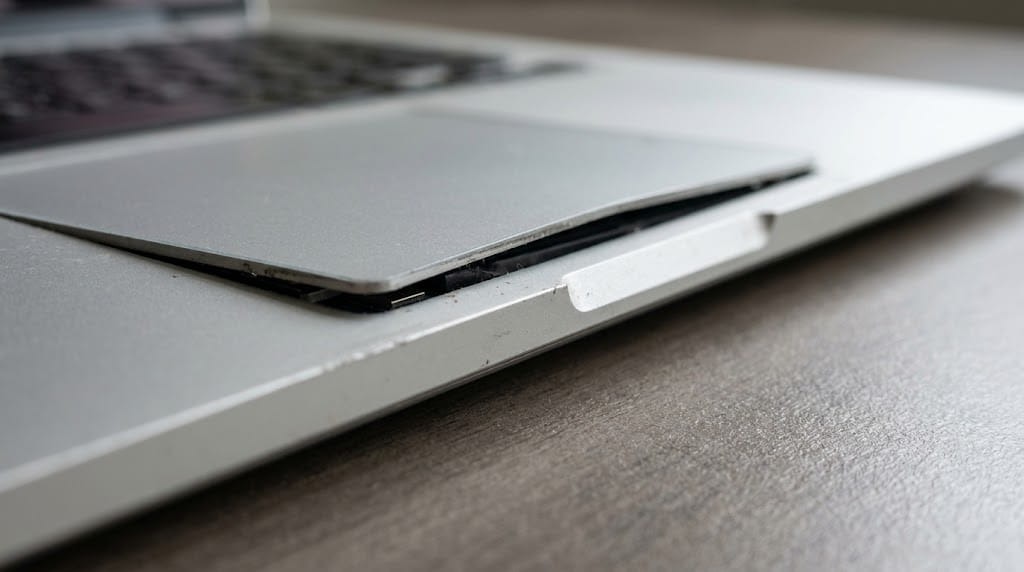
The main warning signs are a fan that runs loud and constantly, a base or keyboard that's uncomfortable to touch, performance that drops after a few minutes of work, and shutdowns with no warning.
Some of these signs simply mean the laptop needs attention soon. Others mean it should be switched off and unplugged now.
Early Signs a Laptop Is Running Too Hot
A laptop is running too hot when it struggles with work it used to handle easily. Watch for these:
- Fan noise that never drops, even on email and browsing
- A hot underside or keyboard during light tasks
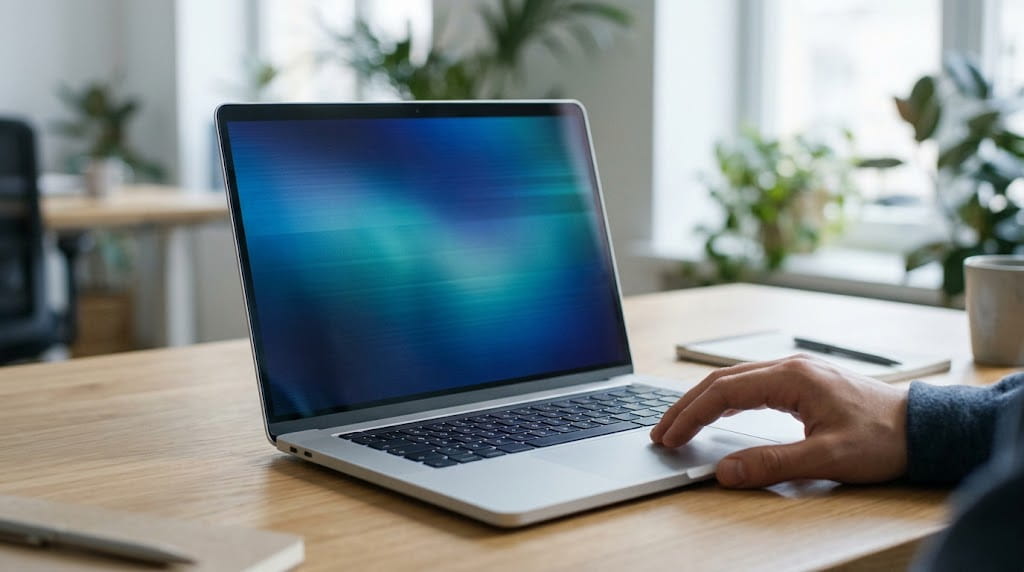
- Slowdowns after a few minutes of heavy work, followed by recovery once it cools
- Apps freezing or crashing more often than usual
That third sign is thermal throttling. Processors have built-in thermal protection that cuts their speed when the chip gets too hot. If the heat keeps climbing, the same protection shuts the processor down completely.
Urgent Signs That Mean You Should Stop Using the Laptop
Stop using the laptop and unplug it straight away if you notice any of these:
- A burning or chemical smell
- A lifting trackpad, bulging keyboard or splitting case, which points to a swollen battery
- Repeated shutdowns during light work
- A charger or base too hot to hold
Swollen lithium-ion batteries are a known failure, and manufacturer guidance on swollen batteries lists age, charge cycles and high heat among the causes. Don't press on the bulge or try to remove the battery yourself.
What Causes a Laptop to Overheat?
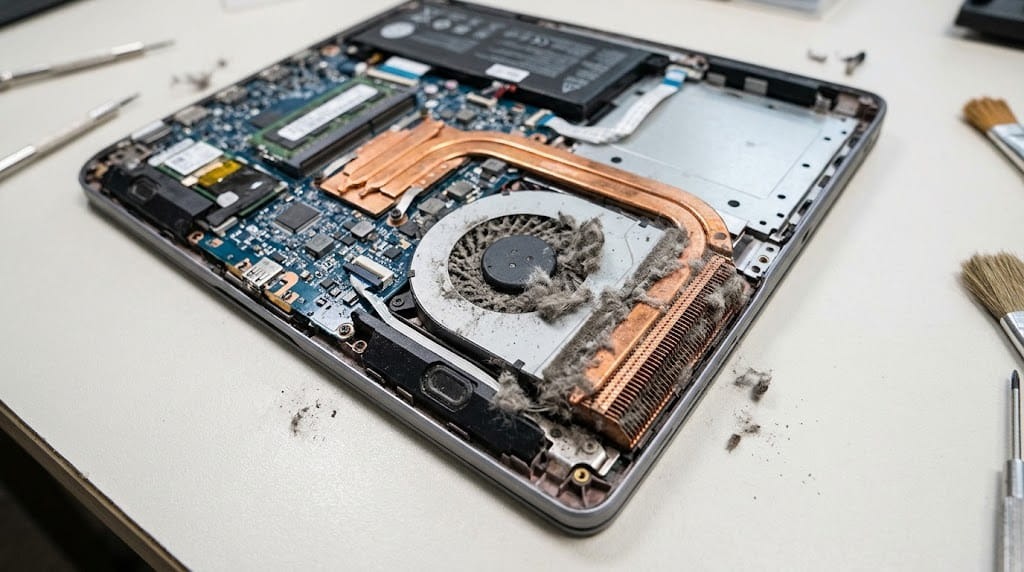
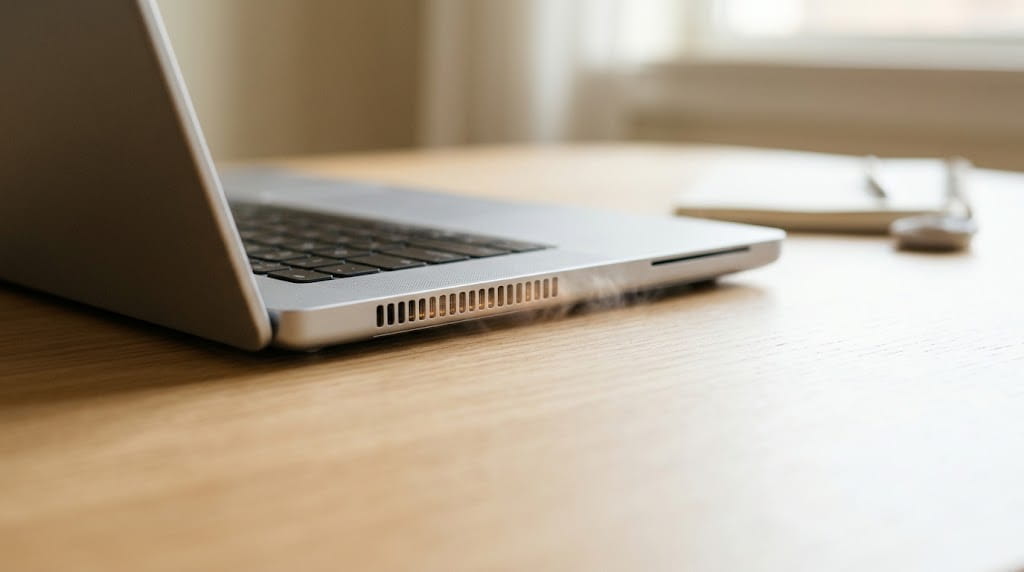
Most overheating comes down to heat that can't escape. A laptop's fan pulls cool air in through small vents, pushes it across a metal heatsink and blows warm air out the side or back.
Anything that blocks that path, or adds more heat than the cooling system was built to handle, pushes the temperature up. The usual causes are:
- Blocked vents. Working on a bed, sofa or lap covers the intake vents on the underside.
- Dust and fluff in the fan. It builds up over months and chokes the airflow through the heatsink.
- Dried thermal paste. The compound between the processor and heatsink dries out with age, so heat moves away from the chip less efficiently.
- Heavy background load. Dozens of browser tabs, sync clients, updates and security scans running together keep the processor busy.
- A worn fan. Bearings wear out, so the fan spins slower or stops altogether.
- Warm surroundings. A laptop left by a sunny window or in a hot car starts its working day already warm.
- Malware. Hidden processes can keep the processor working flat out in the background.
Several of these causes overlap with the reasons a PC slows down over time, so a machine that's both hot and sluggish often has one shared problem. Check what's running in the background first.
How Do You Fix an Overheating Laptop Safely?
You can fix most mild overheating by improving airflow, cutting the background workload and keeping software up to date. None of these steps involve opening the laptop.
Work through them in order, because the first few solve the most common causes:
- Move it to a hard, flat surface. A desk lets the intake vents breathe. A simple laptop stand that raises the back helps even more.
- Check what's using the processor. Open Task Manager on Windows (Ctrl + Shift + Esc) or Activity Monitor on a Mac. Close anything hogging the processor and turn off startup apps that don't need to run.
- Clean the outside vents. Shut the laptop down and unplug it. Then use short bursts of compressed air across the vents, holding the can upright.
- Install pending updates. Windows updates and the manufacturer's own driver and BIOS updates can include power and fan management fixes.
- Switch to a balanced power mode. On Windows 11, "Balanced" or "Best power efficiency" produces less heat than "Best performance".
- Run a full security scan. This rules out malware quietly loading the processor.
- Use a cooling pad for heavy work. It helps a docked laptop doing long, demanding tasks, though it won't fix a clogged fan.
If the laptop still runs hot after all seven steps, the problem is inside the case.
Which Laptop Overheating Fixes Need a Technician?
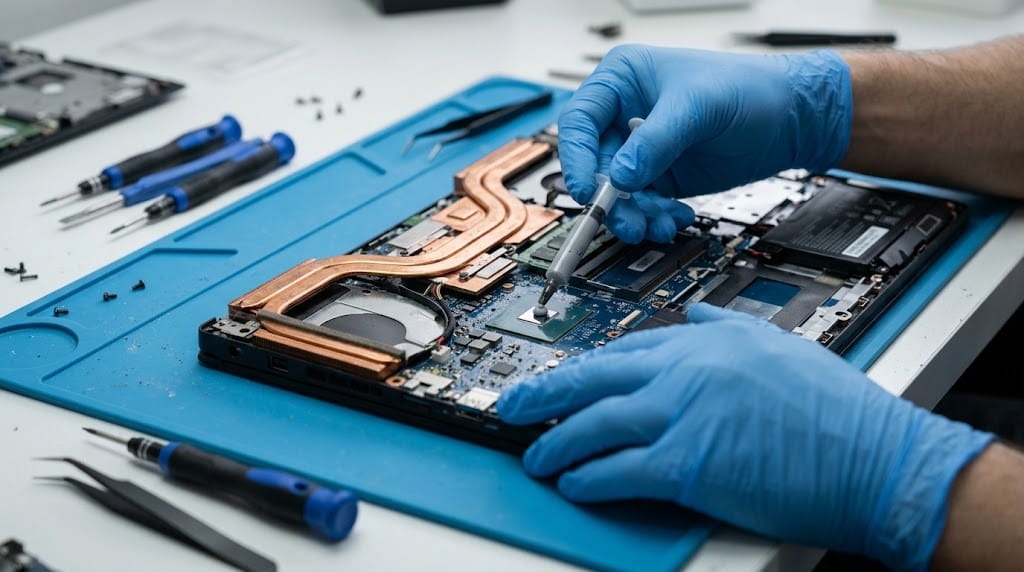
Any fix that means opening the laptop needs a technician. That covers internal cleaning, replacing thermal paste, swapping a worn fan and replacing a swollen battery.
Modern laptops use fragile ribbon cables, tiny clips and glued panels, so a DIY attempt can easily turn a heat problem into a broken screen connector. The internal fixes look like this:
- Internal dust clean. The fan and heatsink fins are cleaned properly, which outside vent cleaning can't reach.
- Thermal paste replacement. Old compound is removed and fresh paste applied between the processor and heatsink.
- Fan replacement. A worn or noisy fan is swapped for a matching part.
- Battery replacement. A swollen battery is removed safely and disposed of correctly.
Check whether the laptop is still under the manufacturer's warranty before anyone opens it. Otherwise, these jobs are routine laptop repair work and worth pricing before you write a machine off.
Can Laptop Overheating Cause Permanent Damage?
Yes, repeated overheating can cause lasting damage, mostly to the battery, the fan and your data. The processor protects itself by slowing down and shutting off, so it rarely burns out. The parts around it aren't so lucky.
- Battery. Sustained heat wears lithium-ion cells faster and is one of the causes of swelling.
- Fan. A fan running flat out all day wears its bearings sooner.
- Data. Sudden shutdowns lose unsaved work and can corrupt files that were open at the time.
That last point is why a laptop that keeps cutting out is a business risk as well as an annoyance.
How Should a Business Handle Laptop Overheating Across the Team?
A business should handle overheating as a routine maintenance task across every machine. If several laptops of the same age or model run hot, there's usually a shared cause, such as years of dust, a spec that's too light for the workload, or software pushing every machine harder.
A simple approach works for most small teams:
- Log which laptops overheat, with the model, age and what the user was doing at the time.
- Add a vent and dust check to your regular hardware maintenance.
- Match the spec to the job. A thin, light laptop won't keep up with all-day CAD or video work.
- Check battery health on older machines before swelling appears.
Under a managed IT services agreement, remote monitoring and maintenance keeps updates and machine health on a schedule. Problems like this get picked up early instead of on the morning of a client meeting.
Getting an Overheating Laptop Checked Before It Fails
A laptop that runs hot is giving you an early warning. Start with airflow and background load, because they fix most cases in minutes.
If the heat comes back, or you spot any sign of a swollen battery, get the machine looked at quickly. Book a free IT audit and we'll review the laptops your team depends on, so heat problems are fixed before they cost you a working day.
Get an IT Plan Today!