
Outlook not receiving emails almost always comes down to one of three things. Either the message never reached your mailbox, a filter or rule moved it after it arrived, or the Outlook app on your PC has stopped syncing with the server.
Working out which of the three you're dealing with takes about a minute, and it saves you changing settings that were never the problem in the first place. Most of the fixes below you can do yourself. Two of them need an administrator.
Below are the eight fixes in the order a technician would work through them, starting with the single check that rules out half the list.
Why Outlook Not Receiving Emails but Sending Fine
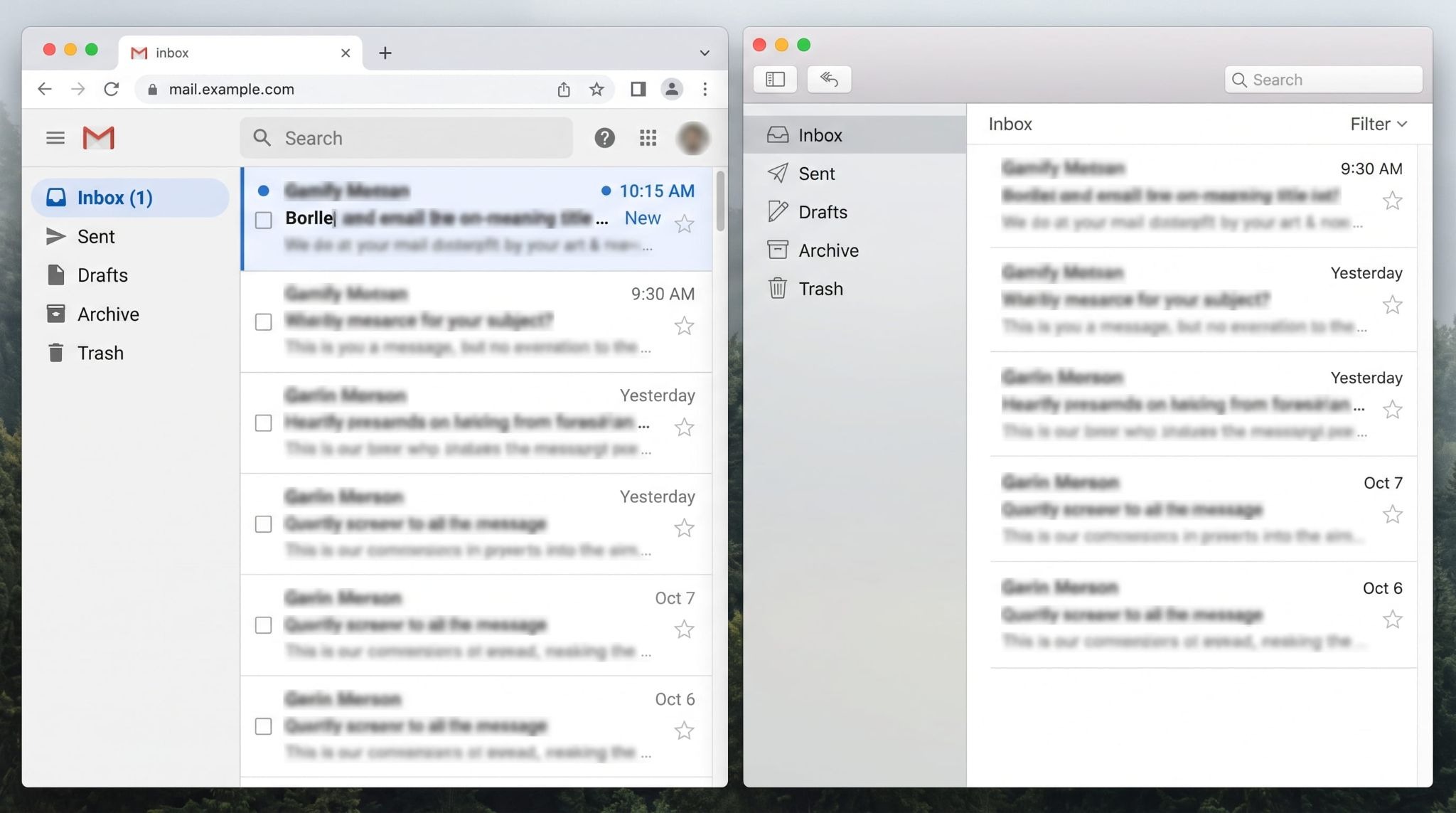
If sending works and receiving doesn't, your connection to Microsoft 365 is fine, so the fault sits in mail flow, filtering or a rule rather than in Outlook itself.
Open Outlook on the web at outlook.office.com and look for the missing message there. Outlook on the web reads the mailbox straight off the server with no local cache in the way, which is what makes it a clean test.
- Message is there on the web but not on your PC. The mailbox is healthy and the fault is in the desktop client. Go to Fix 1 and Fix 7.
- Message is missing in both. It never made it to the Inbox. Work through Fixes 2 to 6.
- Sending is failing too. That's a connection or authentication fault, and the steps for a connection to server failed error will get you further than anything below.
Fix 1: Turn Off Work Offline and Force a Send/Receive
Work Offline cuts Outlook off from the server while everything on screen still looks perfectly normal, which is exactly why it catches people out. In classic Outlook, open the Send/Receive tab and check whether Work Offline is highlighted. Switch it off, then press F9.
The status bar along the bottom of the window tells you where you stand.
- Connected to Microsoft Exchange. Outlook is talking to the server.
- Working Offline or Disconnected. Nothing is syncing until you reconnect.
- Trying to connect. Usually a network, VPN or proxy problem on your side.
New Outlook for Windows and Outlook on the web have no Work Offline switch, so move on if that's what you're using.
Fix 2: Check Junk Email and the Focused Inbox Other Tab
Junk Email and the Other tab are where most "missing" business email turns up, particularly first-time senders and anything carrying an attachment or a link. Check both before you change a single setting.
This one is time-sensitive. Exchange Online clears items out of the Junk Email folder after 30 days by default, and once they're gone, they're gone.
Worth a look at the same time:
- Archive, and any folder a rule could be targeting
- Deleted Items, plus Recover Deleted Items for anything already emptied
- Conversation History, which quietly swallows Teams-related mail
Items you've cleared out of Deleted Items stay recoverable for 14 days by default, so a deleted message isn't lost yet.
Fix 3: Delete the Inbox Rule Moving Mail Out of Your Inbox
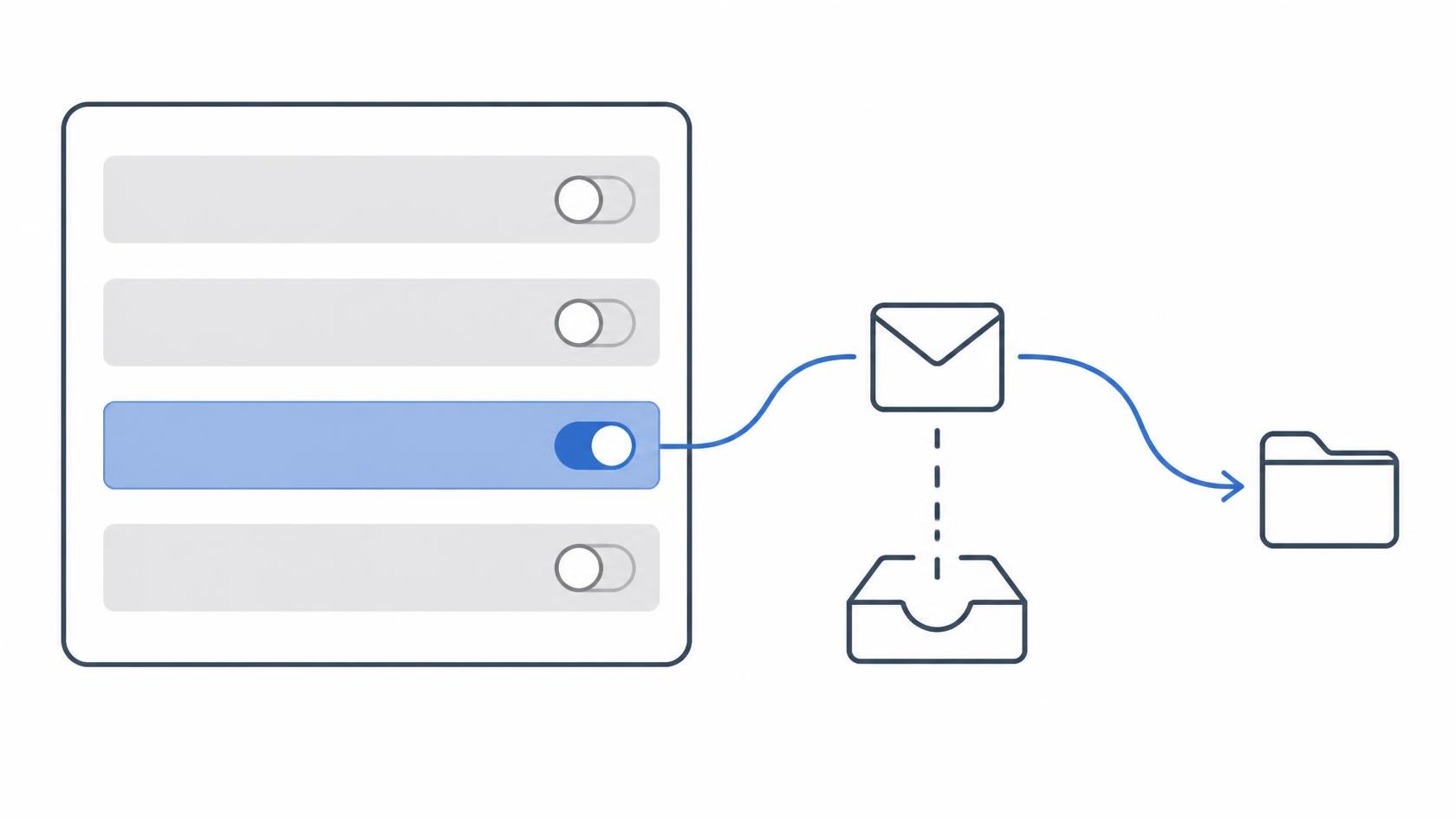
A rule you set up months ago and forgot about is the single most common reason mail lands in the mailbox and then disappears from the Inbox.
Open Settings, then Mail, then Rules in Outlook on the web and read every rule properly, including the ones you don't remember writing.
Look for:
- Move to folder conditions built on a keyword that's now too broad
- Delete rules aimed at a sender domain you still deal with
- Forward or redirect actions sending mail to an old address
- A "stop processing more rules" action killing everything beneath it
Redirects deserve particular attention. Exchange Online only redirects a message once, so if your rule sends mail to a colleague whose own rule forwards it onward, that second hop is dropped silently and nobody gets a non-delivery report.
Fix 4: Remove the Sender from Your Blocked Senders List
A blocked sender goes straight to Junk Email with no notification at all, and one accidental Block click is enough to make it permanent. Check the list in Outlook on the web under Settings, then Mail, then Junk email.
Blocked domains are the bigger risk. Blocking a whole domain takes out every address behind it, so one spam email from a supplier's domain can cut off the accounts department at the same company.
Fix 5: Release the Email from Microsoft 365 Quarantine
Microsoft 365 can hold a message in quarantine rather than delivering it, which means it reaches neither your Inbox nor your Junk folder. An administrator checks this at security.microsoft.com under Email and collaboration, then Review, then Quarantine.
Two details change how urgent this is. Spam sits in quarantine for 30 days by default before it's permanently deleted, and according to Microsoft's guidance on quarantined messages, anything caught as high confidence phishing or malware is visible to admins only, so it will never appear in your own quarantine view.
If the same sender keeps getting quarantined, releasing the message is only half the job. The anti-spam or anti-phishing policy that caught it needs adjusting, or you'll be back next week.
Fix 6: Clear Space in a Mailbox That Has Hit Its Storage Limit
A full mailbox stops accepting mail completely. The sender gets a bounce message and you see nothing whatsoever, which makes this one of the quieter causes.
On Microsoft 365 Business plans, Exchange Online warns the user at 98 GB, blocks sending at 99 GB and stops receiving at 100 GB. Older Office 365 E1 mailboxes cut off at 50 GB, so check the licence on Microsoft's published Exchange Online limits before you assume there's headroom.
What actually frees space:
- Emptying Deleted Items and Junk Email, then emptying Recoverable Items
- Sorting by size and clearing the heaviest attachments
- Moving old mail into the online archive mailbox, if the licence includes one
Fix 7: Repair the Outlook Data File or Rebuild the Outlook Profile
When mail shows in Outlook on the web but not on the desktop, the local .ost cache file has drifted out of step with the mailbox. Rebuilding the profile is faster and safer than deleting files by hand.
- Close Outlook, open Control Panel, then Mail, then Show Profiles
- Add a new profile, set it as the default, and reopen Outlook
- Let the mailbox download fully before judging whether it worked
On a large mailbox the initial sync takes a while, so start it when you can leave the machine alone. If the same PC keeps dropping its connection after a rebuild, the cause usually sits further out, and the wider list of common Microsoft 365 problems covers where to look next.
Fix 8: Rule Out a Microsoft 365 Outage or a Mail Flow Problem
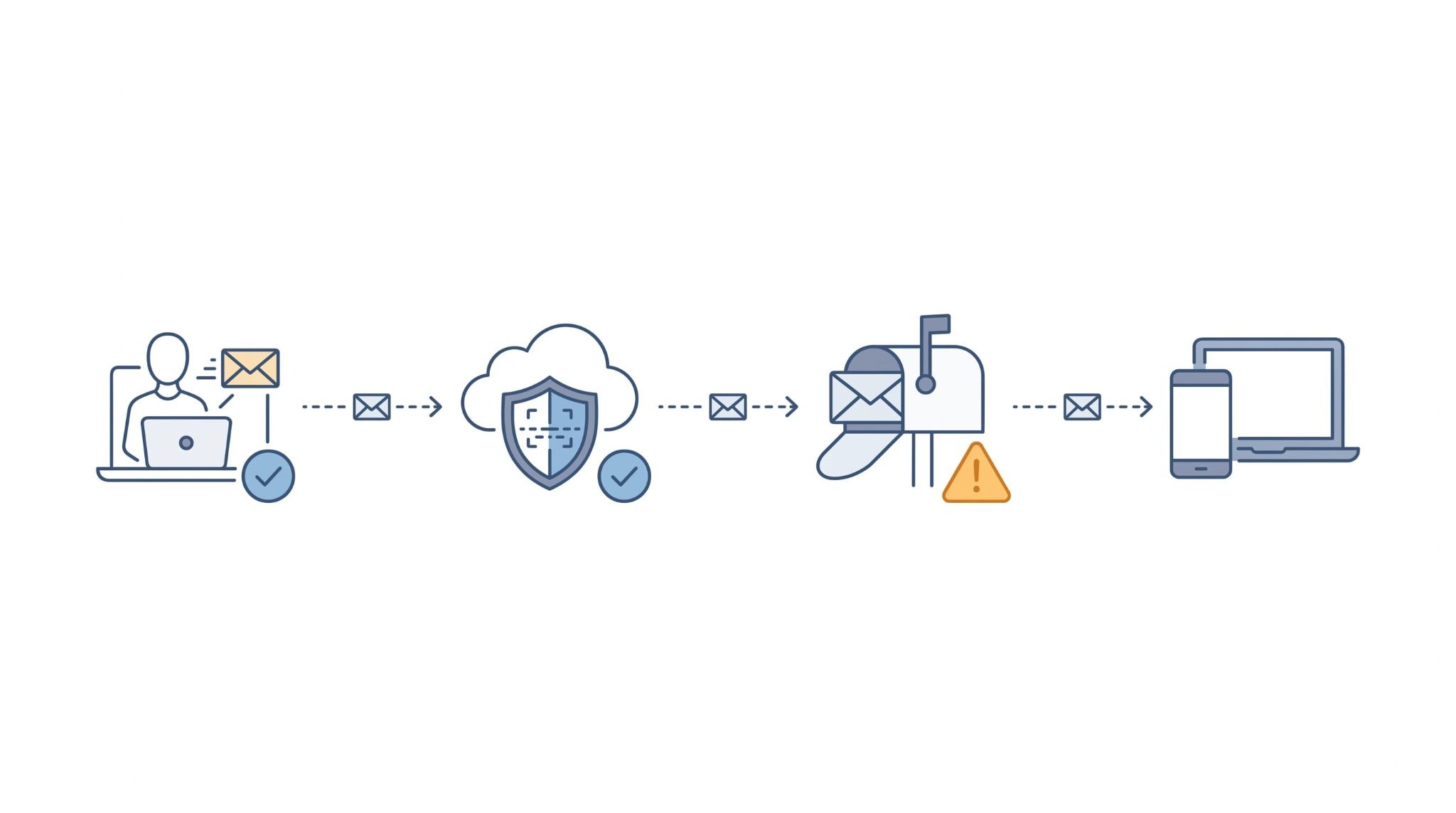
When more than one person stops receiving mail at the same time, stop troubleshooting individual PCs. Check Service health in the Microsoft 365 admin centre, then run a message trace to find out whether the message reached the tenant at all.
The trace result tells you where to go next.
- Delivered. It reached the mailbox, so the cause is a rule, a folder or the client.
- Filtered as spam or quarantined. Back to Fix 5.
- No record at all. It never arrived. Check the MX records and any recent DNS or domain change.
Two tenant-level settings catch businesses out here. An organisation-wide mail flow rule can silently redirect or drop mail, and Exchange Online caps a mailbox at 3,600 received messages per hour, after which inbound internet mail is bounced back to the sender until the hour resets.
When to Hand Outlook Email Problems to an IT Provider
Escalate the moment the problem stops being yours alone. A fault affecting one mailbox is usually a rule or a client. A fault affecting several points at the tenant, the domain or the filtering policies, and poking at individual settings will only muddy the trail.
Three patterns are worth handing over straight away:
- Mail missing with no message trace record, which means a DNS or routing problem
- A forward or redirect rule nobody admits to creating, which can indicate a compromised account
- Senders reporting bounces while internal mail flows normally
Most of the eight fixes above take under five minutes each, and the Outlook on the web test at the top tells you which half of the list you can skip entirely.
If mail keeps going astray across the team, book a free IT audit and we'll check mail flow, filtering policies and mailbox health end to end, with the findings written up so you can see exactly where messages are being lost.
Get an IT Plan Today!