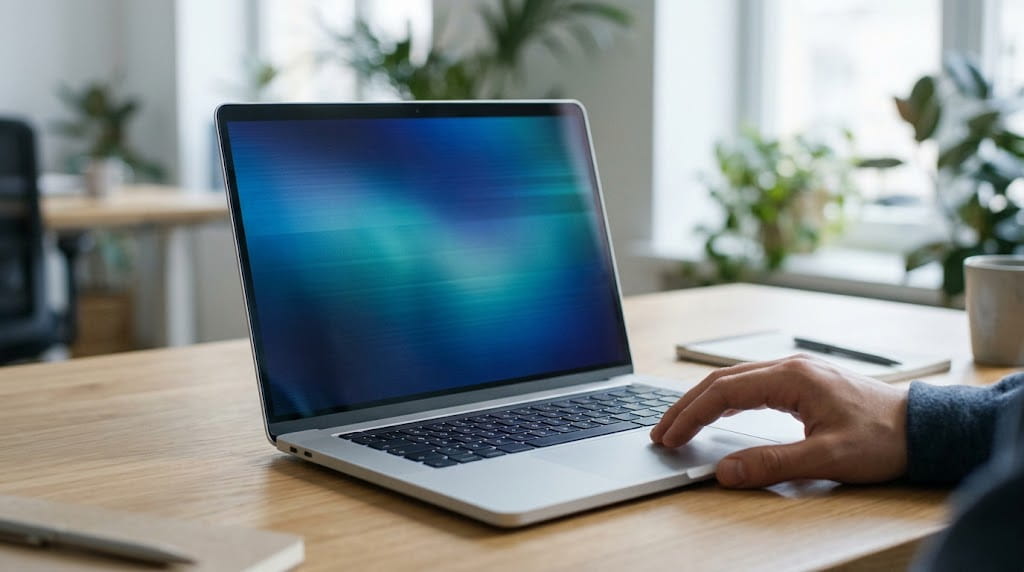
Laptop screen flickering is usually caused by a display driver problem or an app that clashes with Windows, and both can normally be fixed in minutes. Less often the cause is physical. A worn display cable in the hinge or a failing backlight are the usual hardware faults.
The useful step is working out which one you have before you change any settings. One quick check with Task Manager and a look at an external monitor will usually show whether you need a software fix or a technician.
This guide covers those tests, the fixes in the order a technician would try them, and the warning signs that mean it's time to stop troubleshooting.
What Causes Laptop Screen Flickering?
Laptop screen flickering has two groups of causes. Software causes are display drivers, incompatible apps and display settings. Hardware causes are the display cable, the backlight and the screen panel.
Software problems are far more common, so they're always worth ruling out first.
Software Causes of a Flickering Laptop Screen
Software flicker comes from the code that tells the screen what to draw. The usual culprits are:
- Display driver faults. A corrupt, outdated or newly updated graphics driver, often after a Windows Update.
- Incompatible apps. Some programs don't work well with Windows and make the screen flicker or scramble.
- Display settings. A refresh rate that doesn't suit the panel, or adaptive brightness that keeps adjusting itself.
Hardware Causes of a Flickering Laptop Screen
Hardware flicker comes from a physical part that is wearing out or damaged. The usual culprits are:
- Display cable. The thin cable that runs through the hinge wears a little every time the lid opens and closes.
- Backlight. A failing backlight tends to dim as well as flicker.
- LCD panel. Damage from a drop, pressure on the lid or a spill.
How to Tell If Laptop Screen Flicker Is Software or Hardware
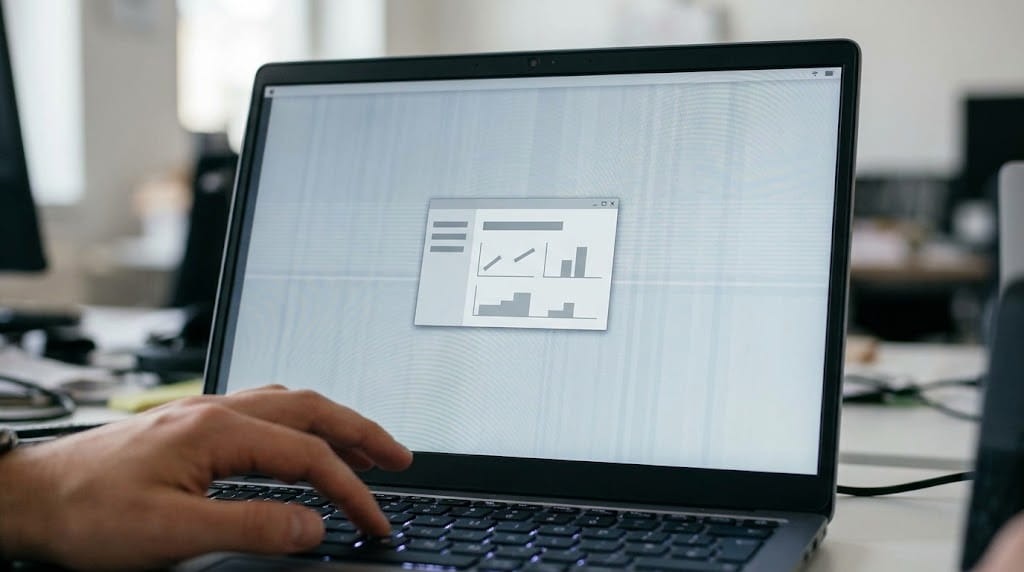
The fastest test is to open Task Manager while the screen is flickering. Press Ctrl + Shift + Esc.
If Task Manager flickers along with everything else, the display driver is the likely cause. If Task Manager stays steady while the rest of the screen flickers, an app is probably to blame.
Three more checks narrow it down:
- Connect an external monitor. If the monitor is stable and the laptop screen still flickers, the fault is in the built-in display, its cable or its backlight. If both screens flicker, look at the graphics driver.
- Move the lid slowly. If the flicker changes with the screen angle, the display cable in the hinge is the prime suspect.
- Watch the startup screen. A Windows driver can't cause flicker on the manufacturer's logo, because that screen appears before Windows loads. Flicker at that point puts hardware at the top of the list.
How to Fix Laptop Screen Flickering Caused by Software
Start with the quickest fix and work towards the slowest. Restart and test after each step so you know which one solved it.
The steps are:
- Reset the graphics driver. Press Windows key + Ctrl + Shift + B. The screen goes black for a moment while the driver restarts. If that doesn't help, do a full restart.
- Roll back a recent driver update. If the flicker started after an update, open Device Manager and expand Display adapters. Right-click the adapter, choose Properties, then select Roll Back Driver on the Driver tab.
- Update or reinstall the display driver. If rollback isn't available, update the driver or download the latest one from the laptop manufacturer's support site. You can also uninstall the device and restart, and Windows will reinstall it from scratch.
- Set the correct refresh rate. Go to Settings > System > Display > Advanced display and choose the rate the built-in panel supports. Docking a laptop or changing a driver can leave this setting wrong.
- Turn off adaptive brightness. In the Display settings, switch off the options that change brightness based on light or on-screen content. On some laptops these settings cause a constant, faint pulsing.
- Update or remove the clashing app. If Task Manager stayed steady, update recently installed apps first. Then uninstall them one at a time, restarting after each, until the flicker stops.
Microsoft's own guide to troubleshooting screen flickering uses the same driver-first order and notes that rolling back or uninstalling a driver needs administrator rights. On a managed work laptop most staff won't have those rights, so steps two and three usually go to whoever handles your IT.
Signs Laptop Screen Flickering Is a Hardware Fault
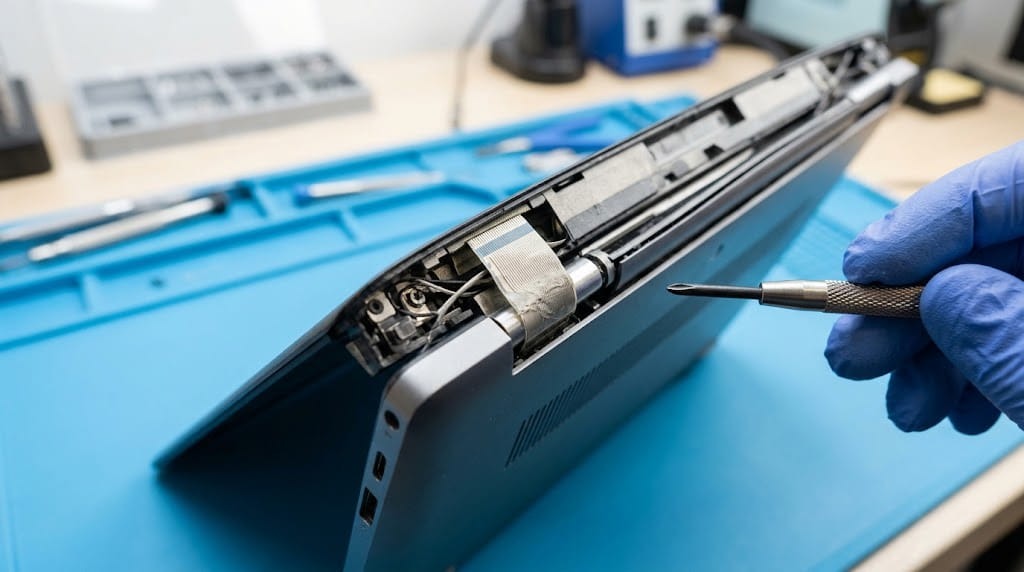
Hardware is the likely cause when the flicker survives every software fix, appears before Windows loads, or changes as you move the lid. Flicker that responds to physical movement usually means the display cable is at fault.
Look out for these signs:
- Flicker that changes with the lid angle. This points to a display cable worn in the hinge.
- Flicker combined with dimming or a dark screen. This suggests the backlight or its power supply.
- Lines, patches or colour bands with the flicker. These point to panel damage or a loose connection.
- Flicker that started after a drop, knock or spill. Treat this as physical damage from the start.
If the panel is visibly cracked, our guide to repairing a damaged laptop screen explains how a screen replacement works. If a business laptop is still under warranty, check the terms before opening the case yourself.
When to Call a Laptop Repair Technician for a Flickering Screen
Call a technician if the flicker is still there after the software steps, or as soon as you see any hardware sign. Fixing a display cable or a backlight means opening the screen assembly. One slip can turn a small repair into a full panel replacement.
Before you hand the laptop over:
- Back up your files to OneDrive or your company's backup system.
- Note when the flicker happens. For example, at startup, on battery, in certain apps or at certain lid angles.
- List what you've already tried so the technician doesn't repeat it.
Those notes save diagnostic time. Our laptop repair service covers screen repair and replacement for all brands and starts with a proper diagnosis of the fault.
Why Laptop Screen Flickering Matters for Irish Businesses

A flickering screen at work is a health and safety issue as well as an IT one. Schedule 4 of the Safety, Health and Welfare at Work (General Application) Regulations 2007 requires the image on work display screens to be stable, with no flickering.
The HSA's display screen equipment guidance explains what employers need to check at each workstation, and screen stability is one of those checks.
In practice, a flickering laptop should be logged and fixed promptly, especially for staff who spend most of the day at a screen.
Look for patterns across the office too. If several laptops start flickering in the same week, a shared driver or Windows update is the usual cause. With managed IT services, updates are managed centrally, so a bad update can be paused or rolled back on every machine at once.
Getting a Flickering Laptop Screen Fixed Properly
Start with the Task Manager test. It takes seconds and shows whether a driver reset will fix the problem or the laptop needs a technician. Most flicker clears with a driver rollback or a settings change.
If yours doesn't, or if several machines are affected, book a free IT audit and we'll find the cause across your whole setup.
Get an IT Plan Today!