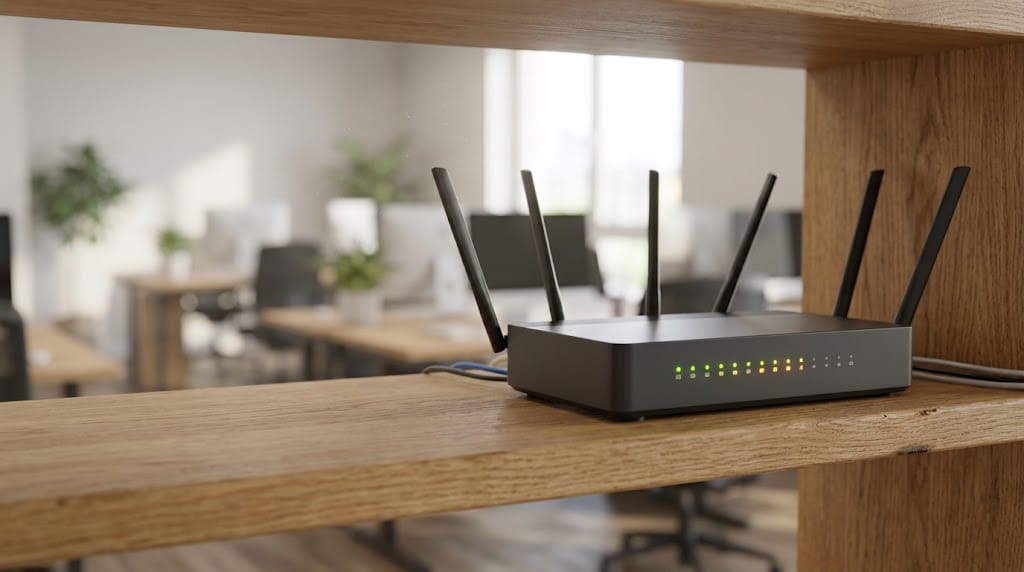
WiFi keeps disconnecting for one of four reasons. The device has a fault, the router is struggling, the signal can’t reach where you work, or the broadband line itself is dropping.
The fix depends on which one it is. So the fastest route to a stable connection is working out where the fault starts before you change anything.
In a small office, a dropping connection costs more than patience. Teams calls freeze, cloud files stop syncing and card terminals lose their link mid-sale. This guide shows how to read the pattern of the dropouts, which fix suits each pattern, and when the problem is your network rather than one laptop.
What Causes WiFi to Keep Disconnecting at Work?
Most WiFi dropouts come from one of four places. These are the device, the router, the signal between them, or the broadband line coming into the building.
Each one leaves a different pattern. That’s why random fixes so often fail, and why a well-planned business network avoids most of these problems from day one. The usual causes look like this.
- Device settings. Power saving switches the WiFi adapter off to save battery, or a driver stops working properly after a Windows update.
- Router strain. Old firmware, overheating, or more laptops, phones and printers than a home-grade router was built to handle.
- Signal problems. Distance, thick walls and interference from other electrical equipment weaken the connection until devices give up on it.
- Line faults. An outage or an unstable service from your broadband provider. No amount of WiFi tuning fixes this one.
How to Find Where Your Office WiFi Problem Starts
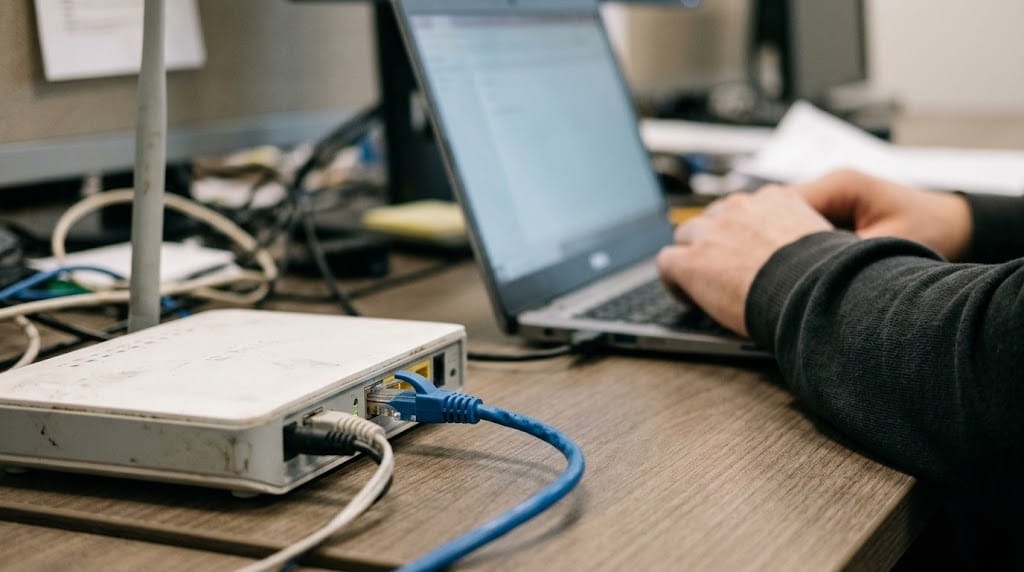
The pattern of the dropouts tells you where to look. Check whether the problem hits one device or all of them, one area or the whole office, and whether it happens at random or at the same times each day.
- One device drops while others stay online. The fault is almost certainly on that laptop or phone.
- Every device drops at once. Look at the router or the broadband line.
- Drops happen only in certain rooms. You have a coverage or interference problem.
- Drops happen at busy times. The router or the line is running out of capacity.
A wired test settles the router versus line question. Plug a laptop straight into the router with an ethernet cable and use it as normal.
If the cable connection holds while WiFi keeps failing, the line is fine and the wireless side is at fault. If the wired connection drops too, the problem sits with the router or your broadband provider.
What to Do When WiFi Keeps Disconnecting on One Laptop
When only one laptop keeps dropping, the fix is on that machine, so leave the router alone for now. Work from the quickest checks to the more involved ones and test the connection after each step.
- Forget and rejoin the network. In Settings, open Network & internet, then WiFi, then Manage known networks. Forget your network and reconnect with the password. This clears a corrupted saved profile.
- Turn off adapter power saving. In Device Manager, open your WiFi adapter’s properties and untick the option that lets Windows switch the device off to save power. Laptops that drop after a few idle minutes often have this setting on.
- Try the other frequency band. If the router broadcasts separate 2.4 GHz and 5 GHz networks, switch to the other one. 5 GHz is faster over short distances, while 2.4 GHz reaches further through walls.
- Update the network driver. Download the latest driver from the laptop maker’s website. A driver that broke after an update is a frequent cause.
- Install pending Windows updates and restart. Some connection bugs are fixed by Microsoft in later updates.
- Use network reset as a last resort. It reinstalls the network adapters and returns their settings to default, so VPN software may need setting up again.
Microsoft’s own guide to fixing WiFi connection issues in Windows covers the same checks in more detail, including the commands that reset a laptop’s IP settings.
On a Mac, iPhone or Android phone, the same logic applies. Forget the network, restart the device and install the latest system update before you suspect the router.
How to Fix WiFi That Drops on Every Device at Once
When every device drops together, the router or the broadband line is the problem, so changing laptop settings won’t help. Restart the equipment properly first, then run the wired test to decide whether to call your provider or deal with the router.
- Restart in the right order. Power off the modem and router, wait at least 30 seconds, then switch on the modem first. Turn the router back on once the modem’s lights settle.
- Check for an outage. Use mobile data on your phone to check your provider’s service status before you spend time troubleshooting.
- Update the router firmware. Out-of-date firmware causes instability and leaves known security holes open.
- Check where the router sits. A router shut in a cupboard or wedged behind a server can overheat and restart itself.
- Question the free router. Routers supplied by broadband providers are designed for homes, and a busy office can push them past what they handle well.
If the router keeps restarting itself, check its status page for a log of reboots. Repeated reboots point to a hardware or firmware fault, and replacing the unit usually ends the problem faster than another round of troubleshooting.
How to Stop WiFi Dropping in Parts of the Office
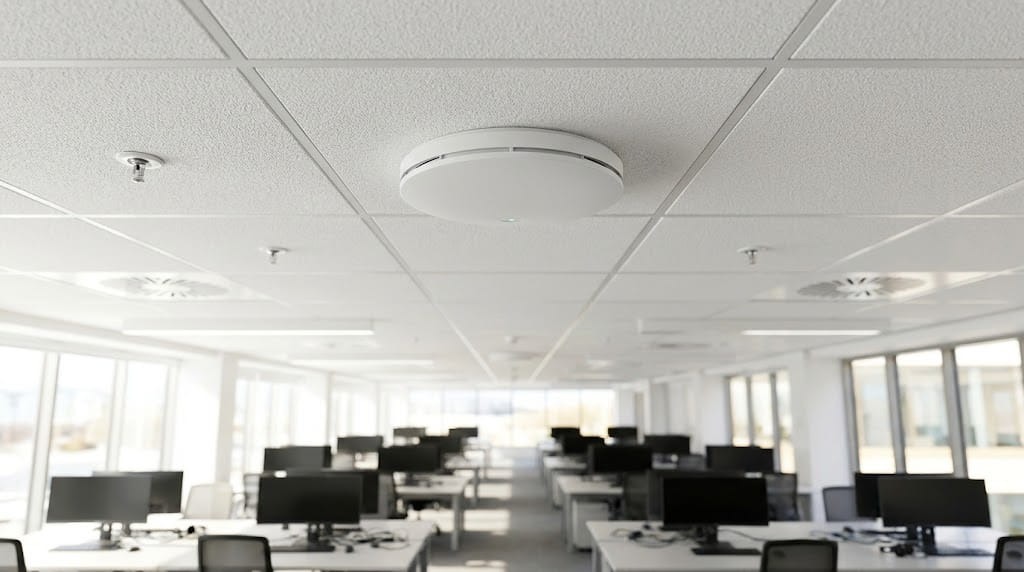
WiFi that drops in one room or at the far end of the office is a coverage problem. The signal is too weak or too noisy by the time it reaches those desks, so devices keep losing it and reconnecting.
National Broadband Ireland’s tips on making the most of your connection name insulated walls, microwaves, TVs, wireless speakers and fairy lights among the things that cut wireless strength. Their advice for spaces one router can’t cover is a mesh system or extra access points.
- Move the router. Keep it central, raised and in the open, away from microwaves and metal cabinets.
- Add proper access points. Business-grade access points or a mesh system spread one network across the floor, and devices hand over between them as staff move around.
- Be wary of cheap plug-in extenders. Many create a second network with its own name, so laptops cling to a weak signal instead of switching to a stronger one.
- Cable the fixed desks. Desktops and printers that never move work better on ethernet, which also frees up WiFi for laptops and phones.
A planned layout of access points beats adding extenders one dead spot at a time. Professional hardware installation gets the cabling and placement right first time, so you’re not chasing weak spots for months.
Why Office WiFi Drops at Busy Times of the Day
WiFi that works early in the morning but fails during meetings or after lunch usually means the network is running out of capacity. Too many devices are competing for one router, and connections start to stall and drop.
Every laptop, phone, printer, smart TV and visitor’s device takes a share. A single home-grade router copes with a household, but a full office on video calls is a different load.
- Set up a separate guest network. Put visitors and personal phones on guest WiFi so they don’t compete with work devices.
- Move heavy traffic out of office hours. Large cloud backups and software updates running mid-morning can swamp the connection.
- Test your line at quiet and busy times. If the broadband itself is maxed out, a bigger package fixes what no router can.
- Use business-grade equipment. Business routers and access points handle many connections at once and can prioritise calls over downloads.
When WiFi Disconnections Become a Business IT Problem
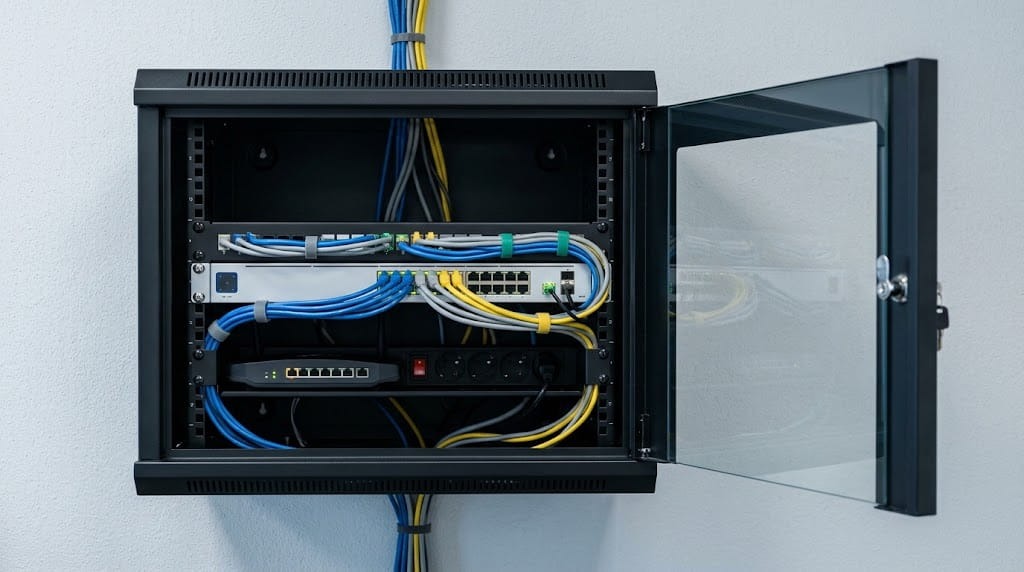
Bring in IT support when the dropouts keep coming back after the basic fixes, affect several staff, or cost you calls, sales or synced files. At that point the issue sits in how the network was set up, and fixing it properly takes the right equipment and configuration.
Watch for these signs.
- Dropouts return within days of every router restart.
- Several people lose connection at the same time each week.
- Card terminals, VoIP phones or cloud apps fail mid-task.
- Nobody knows the router’s admin password or when its firmware was last updated.
- The team has grown but the network hasn’t changed in years.
An unmanaged router running old firmware is a security risk as well as a reliability one. That’s why managed network security covers the router, firewall and access points together, with faults and updates handled before staff notice them.
Getting Stable WiFi Back in Your Office
Stable WiFi starts with knowing where the drops come from. Fix the device when it’s one laptop, the router or line when it’s everyone, and the coverage when it’s one area. Drops at busy times mean the network has outgrown its equipment.
If your WiFi keeps disconnecting after the basic fixes, book a free IT audit and get a clear picture of what your network needs before you spend anything on new equipment.
Get an IT Plan Today!