Most of the time, a PC so slow it interrupts your work comes down to one of six things. Too little RAM, a mechanical hard drive, a disk that's nearly full, too many background apps, overheating, or malware sitting quietly in the background.
The fix depends entirely on which one it is, and that's where most people lose a morning. They clear the browser history, run a free cleaner tool, restart twice, and nothing changes.
Two minutes in Task Manager will tell you where the bottleneck actually sits. Everything below follows from that reading, including the point where patching up an ageing machine stops making financial sense.
What Makes a PC So Slow to Start Up and Run?
Six causes account for nearly every sluggish business PC. They fall into two groups. Software problems, which you can usually clear the same day at no cost, and hardware limits, which need parts or a new machine.
- Too little RAM for the apps you keep open, which forces Windows to swap memory to disk.
- A mechanical hard drive rather than an SSD, which caps how fast anything loads.
- A storage drive close to full, which leaves Windows no room to work.
- Startup and background apps you never asked for and rarely use.
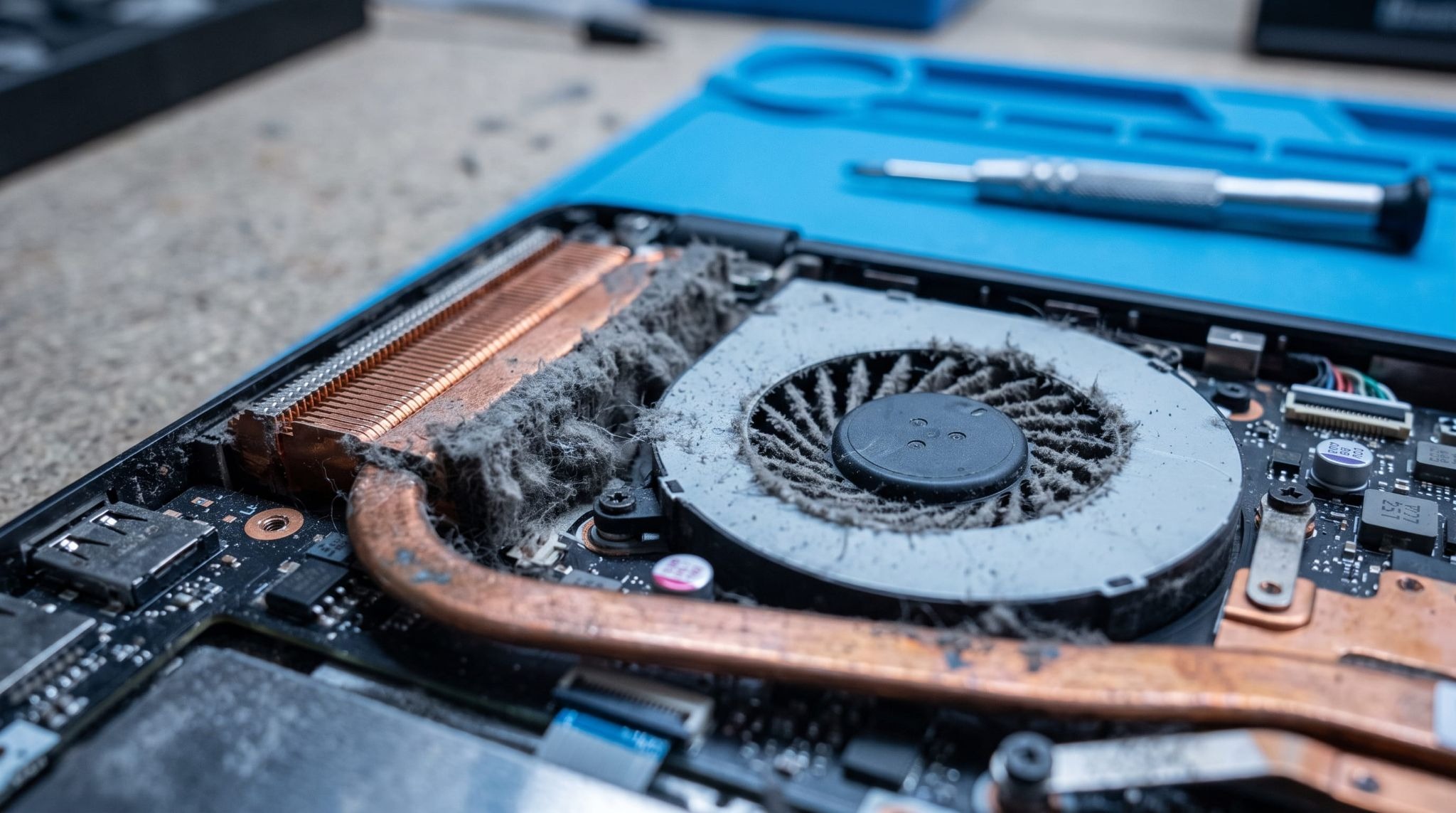
- Overheating, usually from a dust-blocked fan, which makes the processor deliberately slow itself down.
- Malware or a hijacked browser extension burning processor time in the background.
Age on its own is not a cause. A six-year-old machine with an SSD and enough memory will still feel fine for email, Teams and Office work.
How to Diagnose a Slow PC in Task Manager
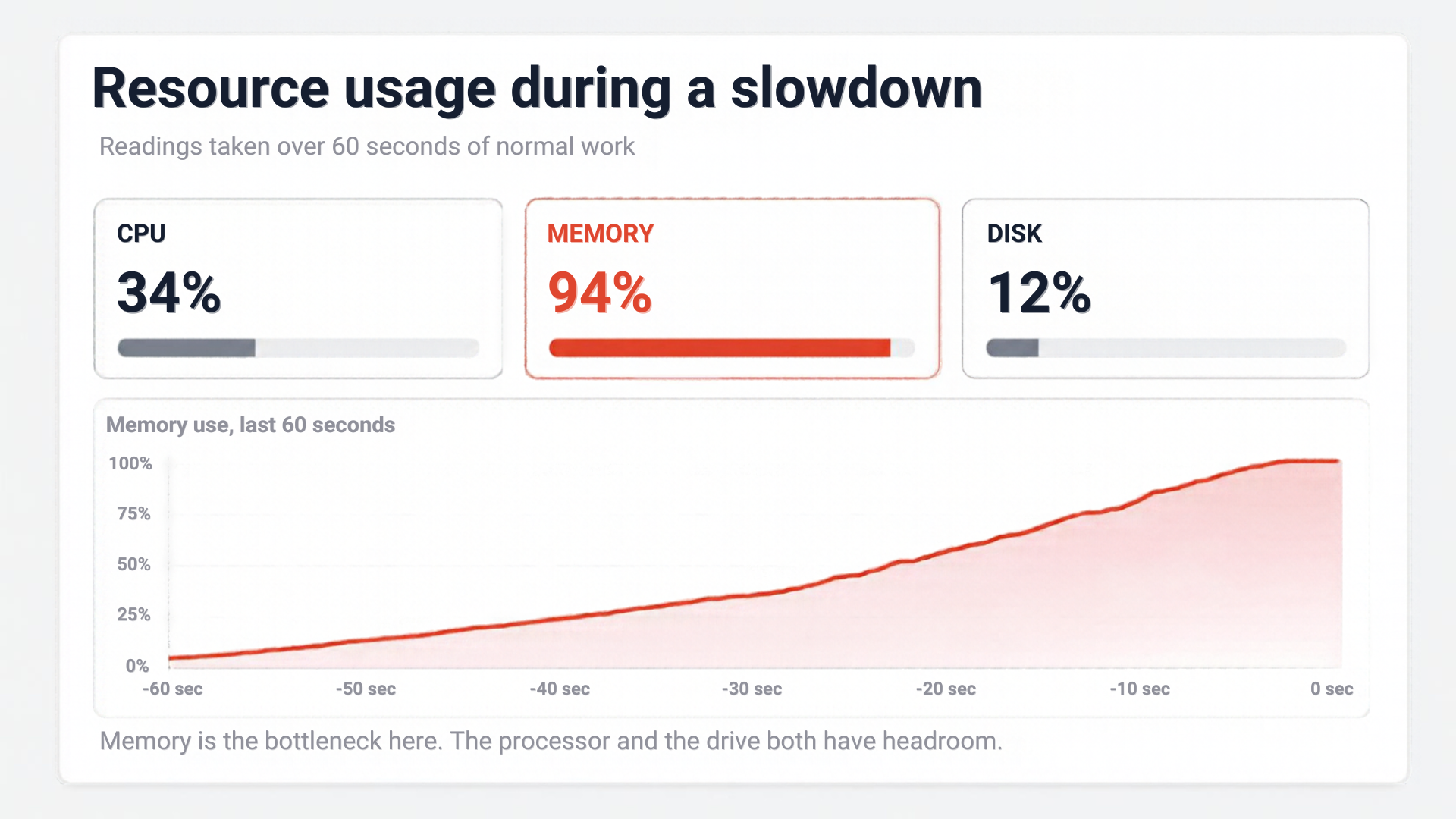
Task Manager identifies the bottleneck faster than any diagnostic tool, because it shows you which resource is pinned while the machine is struggling. Open it, leave it running while you work normally for a minute, and read it rather than guessing.
- Right-click the taskbar and open Task Manager, then go to the Performance tab.
- Watch CPU, Memory and Disk while you open your usual apps.
- Switch to the Processes tab and sort by whichever column is running hot.
- Check the Startup apps tab for anything loading at boot that nobody uses.
What the readings mean:
- Memory sitting at 80% to 100% means you've run out of RAM, not processor power.
- Disk at 100 per cent active time with low transfer speeds points to a mechanical hard drive, or one that's failing.
- CPU pinned high by a single process means a runaway app, a stuck update, or something you didn't install.
- CPU busy but the clock speed low while the machine is hot is thermal throttling.
- Everything low but the PC still feels slow usually means the network or a cloud app, not the computer.
That last reading matters more than people expect. Teams calls breaking up and SharePoint files crawling are network problems wearing a hardware disguise, and replacing the laptop fixes nothing.
4 Software Causes of a Slow PC and How to Fix Them
Software causes are the ones worth ruling out first, because they cost nothing to fix and account for a large share of complaints. Work through them in order before you price up any hardware.
1. Too Many Startup and Background Apps
Every app that loads at boot takes memory and processor time it never gives back. Printer utilities, cloud sync clients, update checkers and chat apps all queue up at login, which is why a machine can take several minutes to become usable.
Open the Startup apps tab in Task Manager and disable anything with a high startup impact that isn't needed at login. Sync clients like OneDrive are worth keeping. Vendor "assistant" software almost never is.
2. Malware Running Quietly in the Background
Malware slows a PC because it's doing work you can't see, whether that's mining cryptocurrency, scanning your files or pushing adverts into the browser. A sudden slowdown with no change in how the machine is used is one of the clearer warning signs, and the National Cyber Security Centre publishes practical guidance for Irish businesses on spotting and reporting it.
Run a full scan rather than a quick one. Then check the browser's extension list, because malicious extensions survive most antivirus scans and reinstall themselves at every launch.
3. Storage Drive Almost Full
Windows needs free disk space to manage virtual memory, temporary files and updates. Once a drive drops below roughly 10 to 15 per cent free, performance falls away sharply and updates start failing.
Clear it properly rather than deleting a few documents. Windows Storage Sense, emptying the Downloads folder, and removing old user profiles on a shared machine usually recover far more space than anything else.
4. Pending Windows Updates or an Unsupported Version of Windows
A machine stuck part-way through an update will run badly until it finishes, and a half-applied feature update can keep the disk busy for hours. Let it complete, then reboot properly rather than closing the lid.
Machines still running Windows 10 are a separate problem. Support for Windows 10 ended in October 2025, and our guide to Windows 10 end of life sets out what that means for a business fleet still on it.
3 Hardware Causes of a Slow PC and How to Fix Them
Hardware causes are the expensive ones, and also the ones that produce the biggest improvement. Two of the three are cheap to fix on a machine that's otherwise healthy, and one of them transforms an old PC completely.
1. Not Enough RAM for How You Work
Running out of memory is the most common hardware cause on business machines, because the way people work changed faster than the specs did. Windows 11 will install on 4 GB of RAM, but a typical day of Teams, Outlook, twenty browser tabs and an accounts package needs considerably more.
8 GB is the practical floor, and 16 GB is the sensible target for anyone running Teams alongside a line-of-business application. On most desktops and many business laptops, adding memory is a short job.
2. Mechanical Hard Drive Instead of an SSD
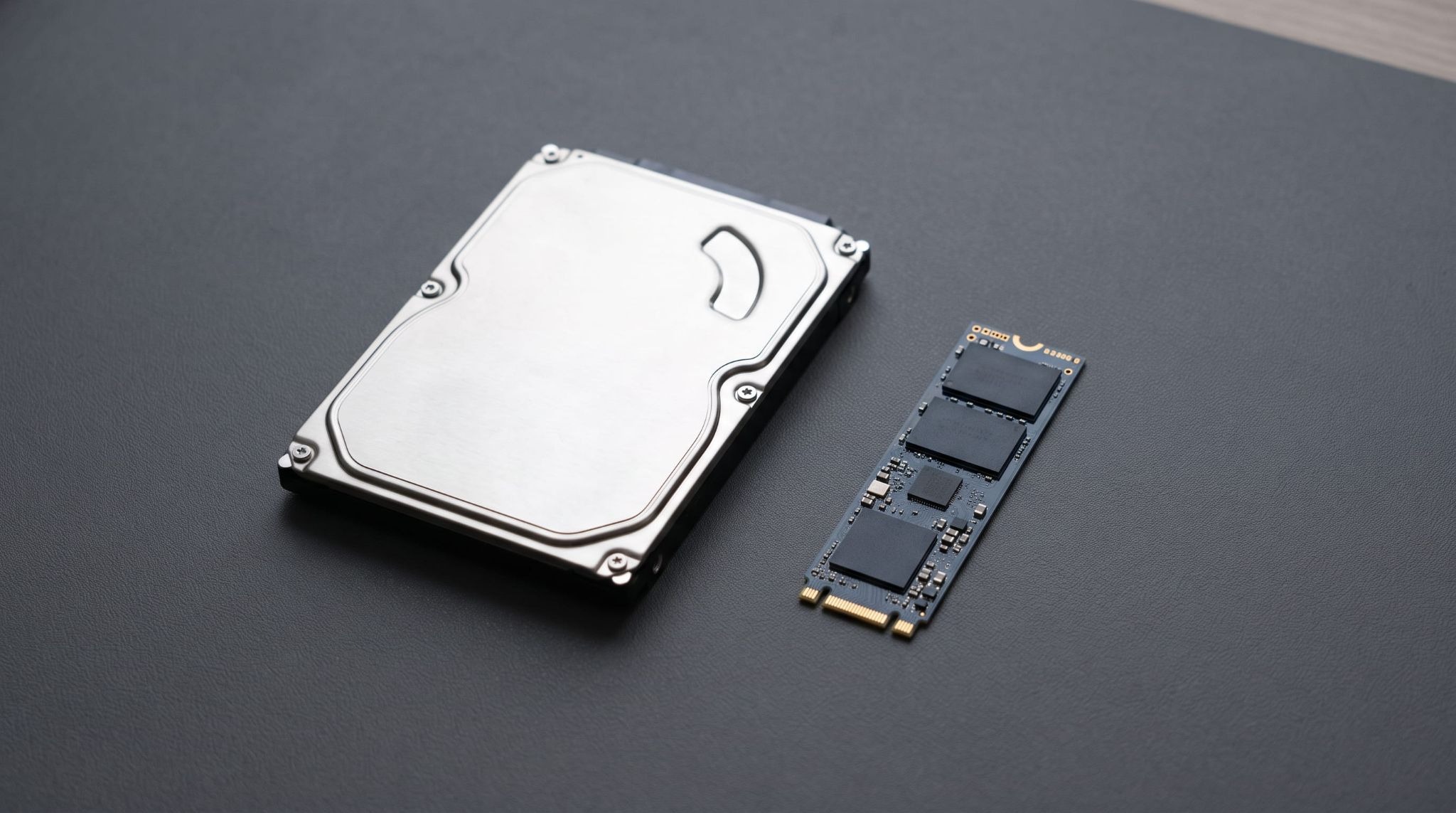
Swapping a mechanical hard drive for an SSD is the single biggest change you can make to an older PC. A spinning disk has to physically move a head to find data, so boot times, file opens and application launches are all limited by mechanics rather than by the processor.
The machine will boot in seconds instead of minutes afterwards. Where the rest of the hardware is sound, a drive swap as part of a planned system upgrade costs a fraction of a replacement PC and buys several more years of service.
3. Overheating and a Dust-Clogged Cooling Fan
When a processor gets too hot it reduces its own speed to protect itself, which is why some laptops feel quick for ten minutes and then crawl. Dust in the fan and vents is the usual culprit, especially on machines kept on carpet, in a workshop, or on a site office desk.
Signs to look for:
- The fan runs loudly and constantly.
- The underside of the laptop is too hot to rest on your knees.
- Performance drops predictably after a period of heavy use.
A proper internal clean, and keeping vents clear of paper and fabric, resolves most cases.
Slow PC Fixes That Work and Ones That Waste Your Time
The fixes that work address a measured bottleneck. The ones that waste your time are the ones people try first because they're easy, and they're easy because they barely do anything.
Worth doing:
- Adding RAM where Task Manager shows memory maxed out.
- Replacing a hard drive with an SSD.
- Disabling startup apps nobody uses.
- Cleaning the fan and vents on a hot machine.
- Running a full scan with properly managed antivirus and anti-malware rather than whatever shipped with the laptop.
Not worth doing:
- Free "PC cleaner" and registry-repair tools, which fix nothing measurable and often bundle adware.
- Defragmenting an SSD, which Windows already handles and which adds needless wear.
- Disabling antivirus to claw back processor time.
- Reinstalling Windows before you know what the bottleneck is, which costs a day and may change nothing.
When to Repair a Slow PC and When to Replace It
Repair when the machine supports Windows 11 and the problem is one part. Replace when the hardware can't take the current operating system, or when the cost of parts and labour approaches half the price of a new machine. Microsoft's Windows 11 system requirements are the dividing line, specifically TPM 2.0, UEFI Secure Boot and a supported 64-bit processor.
Repair makes sense when:
- The PC meets the Windows 11 requirements.
- One component is the bottleneck, usually the drive or the memory.
- The chassis, screen, keyboard and battery are all in reasonable condition.
Replacement makes sense when:
- The processor isn't on Microsoft's supported list, so no upgrade path exists.
- Memory is soldered to the board and already maxed out.
- Faults are stacking up, which tends to mean the machine will be back next month.
For a business fleet, the honest answer is often a staged replacement. Working out which machines are worth saving is a half-hour inventory job, not a guess.[Image: side-by-side comparison of a mechanical hard drive and an M.2 SSD on a workbench]
If several machines in your office have the same complaint, the pattern usually points to one underlying cause across the fleet. Book a free IT audit and get a written view of what's actually slowing your team down.
Get an IT Plan Today!