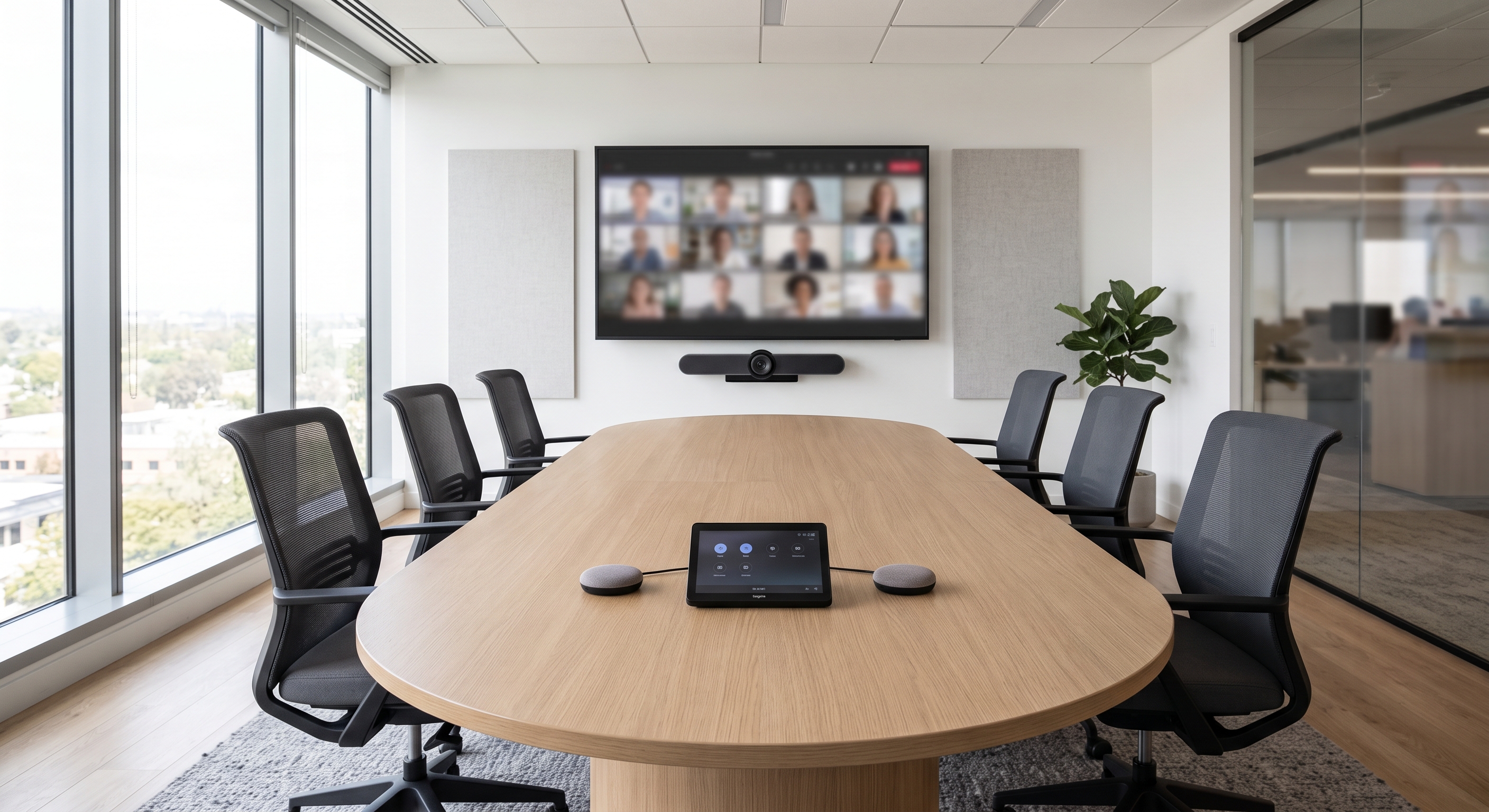
Setting up a Microsoft Teams room means getting six things right in sequence: a room sized for the kit, certified AV hardware, a resource account, the correct licence, a prepared network, and a proper commissioning test. Miss one and the room underperforms from the first meeting.
Most meeting room AV problems in small and mid-sized offices are not really AV problems. They come from a laptop plugged into a screen with a generic webcam, a microphone three metres too far from the people talking, and a room nobody can book from Outlook.
This guide covers what you need on hand, Microsoft's documented deployment order, how to size AV to each room, which licence each space needs, and the network settings that decide whether calls sound clean or stuttery.
What You Need Before Setting Up a Microsoft Teams Room
You need 5 things in place before installation day: certified room hardware, a resource account for the room, a Teams Rooms licence assigned to that account, wired network access with the right ports open, and admin rights across Microsoft 365, Exchange Online and Intune.
Gather the room details too. Room name, building, floor, seating capacity and time zone all feed into the account and calendar configuration, and chasing them mid-install is what turns a two-hour job into a full day.
Hardware Every Certified Teams Room Needs
A Teams Rooms system is a set of components that have each passed Microsoft certification, not a general-purpose PC with conferencing software on it.
- Compute unit. Either a Windows mini-PC or an Android appliance with the compute built into the bar.
- Display. One screen for small rooms, dual screens where people and content both need to be readable.
- Camera. Wide field of view, with auto-framing on anything larger than a huddle space.
- Microphone and speaker. Table units, a bar, or ceiling arrays in larger rooms.
- Touch console. The tap-to-join controller that sits on the table.
- HDMI ingest. So a guest can share from their own laptop without joining the meeting.
Accounts and Admin Access You Need First
Every room needs its own resource account in Microsoft Entra ID with a room mailbox, and that account is what staff invite when they book the room. Microsoft recommends creating it as a cloud-only account where possible, because synced accounts are harder to sign in and troubleshoot.
One detail catches people out. You can't use interactive multi-factor authentication on a room account, since the device has to sign back into Teams automatically after every reboot. Conditional Access and Intune compliance policies are the supported way to secure it instead.
How to Set Up a Microsoft Teams Room Step by Step
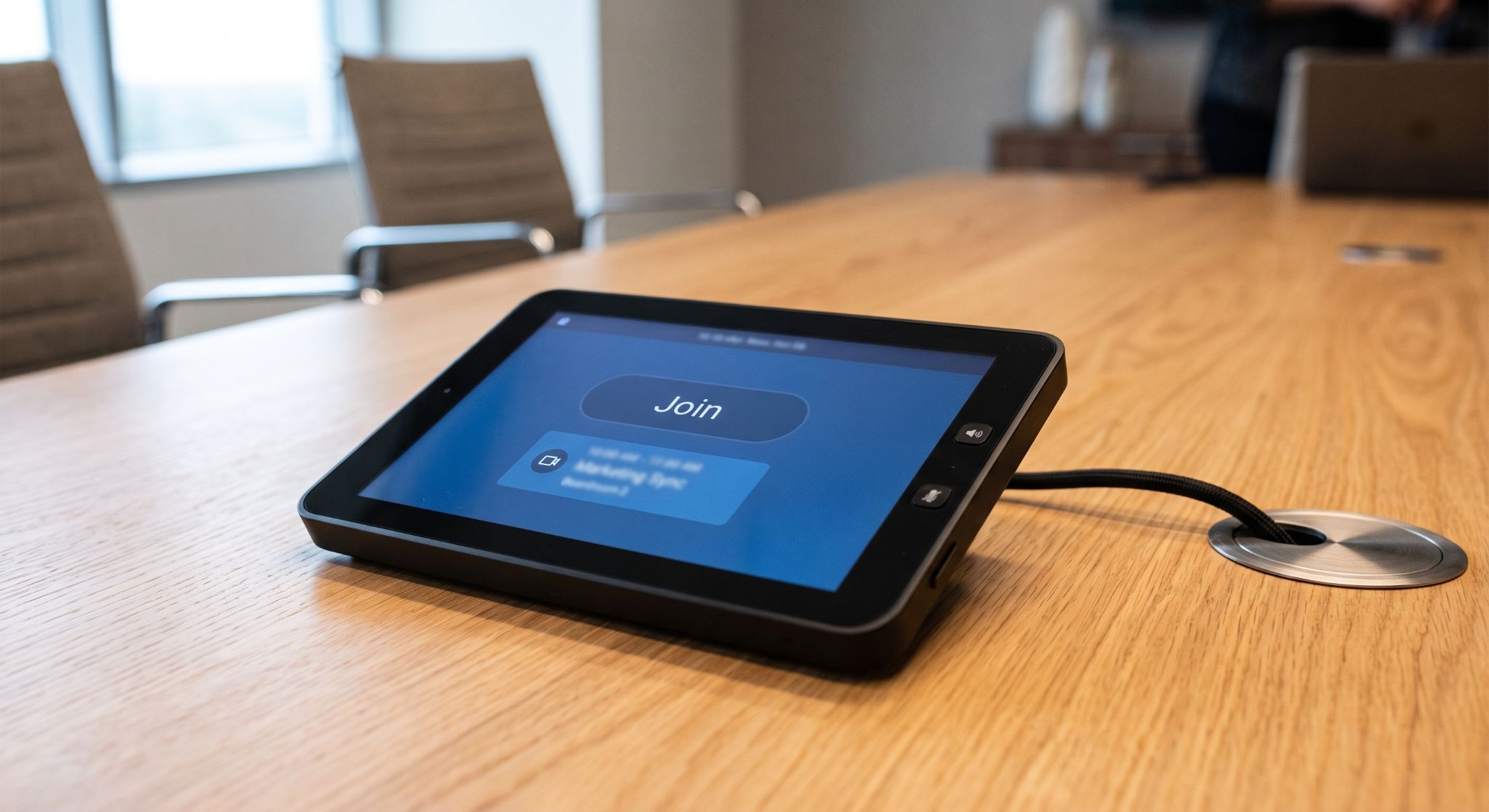
Microsoft's published deployment sequence runs in six phases, and the order matters because each one depends on the last. Work through them in this order rather than plugging hardware in first and sorting accounts later.
- Order equipment and confirm site readiness. Check power, cable routes, mounting positions and furniture in every room on the list.
- Prepare the corporate network. Bandwidth, firewall and proxy rules, certificates and quality of service policies.
- Create the resource accounts. One per room, with the mailbox properties set for auto-accept and calendar processing.
- Enable Pro Management and assign admin roles. This is the portal your support team will live in later.
- Configure Intune. Enrolment, compliance and any device restriction policies that would otherwise block the room.
- Install the hardware and complete setup. Mount, cable, sign in, pair the console and run the on-screen configuration.
Then test properly before handing the room over. Join a real meeting from the console, share content over HDMI and wirelessly, dial a mobile in to check echo, and walk to the back of the room to confirm you can still be heard and that text on the shared screen is legible from the furthest seat.
How to Match Meeting Room AV to Room Size
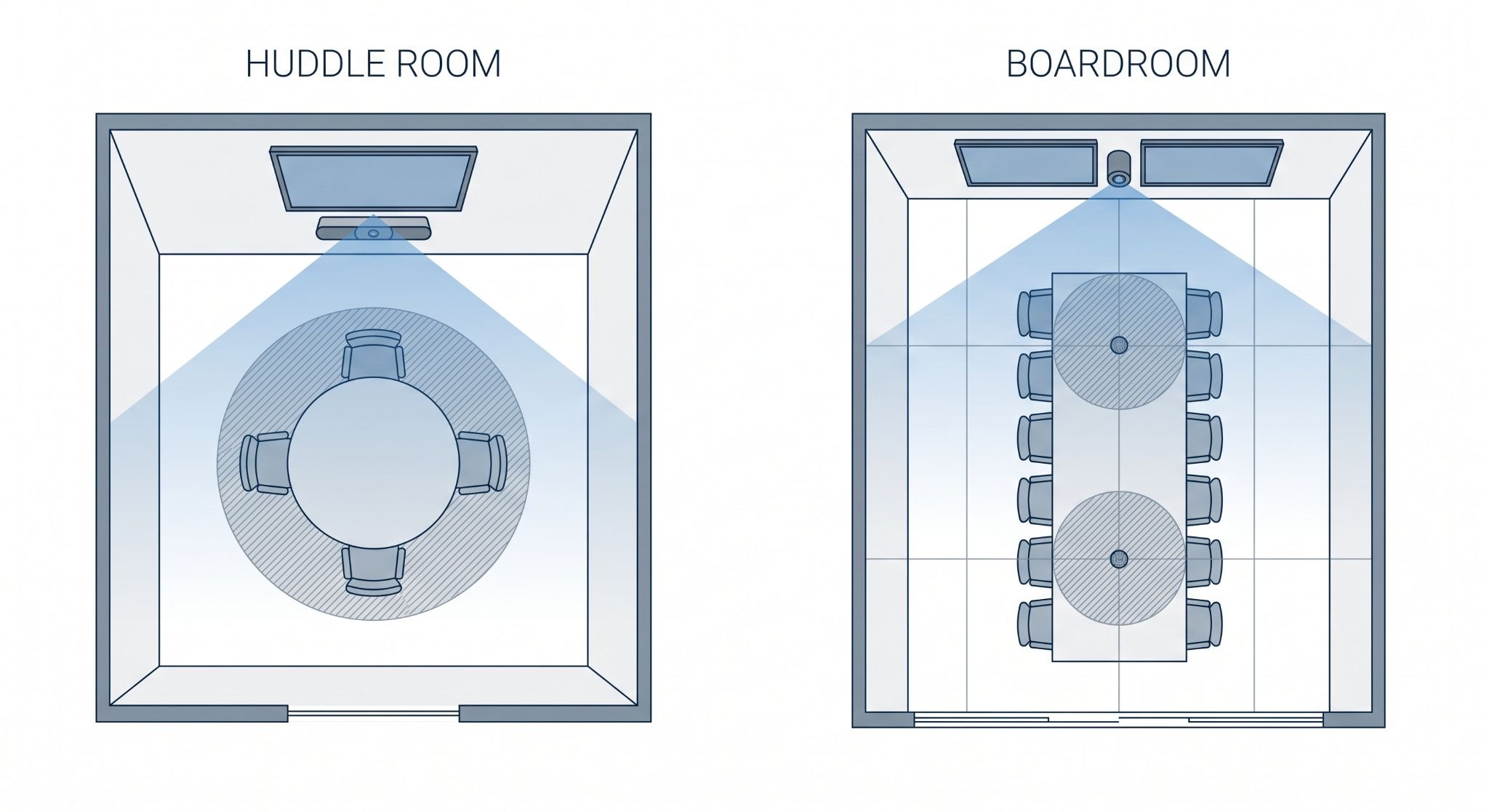
Room dimensions decide the hardware, and Microsoft publishes the bands its certified audio peripherals are tested against. A focus room of roughly 3 x 2.7 m seats 2 to 4 people with a maximum microphone to speaker distance of 1.5 m, while a large room of 4.5 x 9.75 m seats 12 to 16 and stretches that distance to 3 m.
Use those figures as the design constraint, then pick kit that clears them:
- Focus or huddle rooms, 2 to 4 people. One screen, an all-in-one bar with the compute inside, no separate microphones needed.
- Small rooms, 4 to 6 people. Single screen and a bar, with a table microphone if the far seats sit beyond the tested range.
- Medium rooms, 6 to 12 people. A larger or dual display, an auto-framing camera, and expansion microphones daisy-chained down the table.
- Large rooms and boardrooms, 12 to 16 people. Dual screens, a pan-tilt-zoom or multi-camera setup, and ceiling microphone arrays run through a certified processor.
Room shape matters as much as floor area. A long, narrow boardroom needs a second screen so the far end can read content, and a glass-walled room needs both a brighter display and better microphones to cope with reflected sound.
For classrooms, training rooms and client-facing spaces, interactive touchscreen displays with built-in compute and whiteboarding cover the presentation side and the meeting side from one device.
Which Teams Rooms Licence Each Meeting Room Needs
Teams Rooms licences attach to the room device through its resource account, not to a person, so headcount doesn't change what you pay. Teams Rooms Basic supports up to 25 devices per tenant, and you need Pro to go beyond that.
- Teams Rooms Basic. Free within the room cap. Covers one-touch join, scheduling through the room calendar, content sharing and whiteboarding.
- Teams Rooms Pro. Paid per room per month. Adds the Pro Management portal, remote monitoring and analytics, Conditional Access, dual-screen support and the AI camera and audio features.
- Teams Shared Devices. The licence for a standalone booking panel outside a room that has no room system in it.
For most Irish SMEs with a handful of meeting spaces, the sensible mix is Basic on internal huddle rooms and Pro on the boardroom or any client-facing space. Pro also earns its keep on any room your support team needs to monitor remotely rather than visit. Check what your existing Microsoft 365 business licensing already covers before adding subscriptions, since the eligibility rules change with the plan.
Common Teams Room AV Mistakes That Cause Poor Meetings
The failures repeat across almost every estate, and all of them are cheaper to prevent than to fix after the room is live.
- Buying uncertified hardware. It falls out of support and breaks on updates.
- Ignoring microphone range. The far end of the table drops out of every call.
- Putting the room on Wi-Fi. The first symptom is frozen video, the second is a support ticket a week.
- Undersizing the display. If the back row can't read a spreadsheet, people stop sharing content.
- Leaving out HDMI ingest. Visitors then join the meeting from their own laptop and cause feedback.
- Enabling interactive MFA on the room account. The device cannot sign back in after a reboot.
- Skipping acoustics. Hard floors, glass and bare plasterboard create echo that no microphone fixes.
- No management plan. Nobody notices a room is offline until someone walks into a meeting.
When to Hand a Teams Rooms Installation to a Specialist
Hand it over when the room involves ceiling microphones, dual displays, in-wall cabling, a divisible space, or more than three rooms going in at once.
A single huddle room with an all-in-one bar is a genuine DIY job for an in-house IT person. A boardroom is a joint AV and identity project with cabling, acoustics, Entra ID, Exchange and Intune all in play.
The other trigger is ongoing support. A room that nobody monitors quietly drifts out of date, and the first sign is a failed client meeting. Our team has been supporting business IT in Ireland since 2003, and the pattern we see most is rooms specified and installed well, then left unmanaged for two years. Pairing the build with proper hardware support and installation keeps firmware, licences and monitoring in one place.
Next Steps Before You Buy Meeting Room Hardware
Start with an inventory rather than a shopping list. Walk every meeting space, note the dimensions, seating, display position, cable routes and network point, and classify each one as focus, small, medium or large.
If you would rather have that assessment done for you, book a free IT audit and we'll map your rooms, network readiness and licensing position before anything gets ordered.
Get an IT Plan Today!